Click here to view the set-up instructions.
What should I do if I receive a copyright infringement notice?
Copyright infringement notices are sent to customers after they have been reported to have viewed, downloaded, or disseminated copyright protected material. This includes, but is not limited to, images, infographics, videos, and music. Hughesnet® takes claims of copyright infringement seriously and is obligated to comply with the law.
If you have received a copyright infringement notice from Hughesnet but you believe this is in error, there is recourse. Submit a written notification to the Hughesnet Copyright Agent and include the following:
- Your physical or electronic signature.
- An identification of the material that has been removed or to which access has been disabled and the location at which the material appeared before it was removed or access disabled.
- Your name, address, and telephone number
- A statement under penalty of perjury that you have a good faith belief that the material identified above was removed or disabled as a result of a mistake or misidentification of those materials.
- A statement that you will consent to the jurisdiction of the Federal District Court for the judicial district in which your address is located (or if you reside outside the United States for any judicial district in which Hughesnet may be found) and that you will accept service of process from the person (or an agent of that person) who provided Hughesnet with the written notification of the violation.
Please send this information to the address listed here. Repeat infringers will not be tolerated and Hughesnet reserves the right to terminate those accounts.
What is the Hughesnet Return Policy?
You must return your Hughesnet® modem, power supply, and radio in good condition within 45 days of cancellation date or be charged a $300 Unreturned Equipment Fee ($100 for the modem and power supply and $200 for the radio transmitter).
If you are a Hughesnet Fusion® customer, you must also return the multipath device, power supply, and wireless antenna or be charged a $500 Unreturned Equipment Fee.
Please be aware that after 45 days, accounts may not be eligible for credits or fee reversals. This includes contested charges for un-returned equipment fees. View instructions on how to de-install and return your leased equipment here. You are not required to return, and Hughes is not obligated to de-install or pay for the de-installation of the antenna, mount, or any cables.
Call Customer Care at 866-347-3292 to start a return.
Click here to review your Subscriber Agreement.
Is it a hard or a soft credit check when leasing the equipment?
The credit check for leasing the Hughesnet® equipment is a soft inquiry. A soft credit check does not affect your credit score and is not visible to potential lenders that may review your credit report.
Tips for Using Hughesnet
Everything you do online uses data. How much data you use depends on the activity you are doing online. Data is transferred two ways: from the satellite to your computer (download) and from your computer to the satellite (upload). Here are some helpful links to learn more about Hughesnet.
Popular Videos
Understanding Satellite Internet >
UNDERSTANDING DATA
What are Priority Data Tokens?
SETTINGS & DEVICES
How many devices can I connect?
What Works With the new Hughesnet
4 ways to use your security cameras with Hughesnet
Can I Run a VPN over Hughesnet?
OTHER TIPS
Checking your speed performance
What should I do If I have issues with Google Chromebook?
If you are experiencing issues with your Google Chromebook connection, you may need to resolve it by removing and re-connecting to the Hughesnet® network. Follow the steps below to resolve the issue.
1. Forget the network:
- Sign in to your Chromebook: You must be signed in to your Chromebook in order to forget a known network.
- At the bottom right, select the time: This will open the system tray.
- Select Settings: This will open the Settings window.
- In the “Network” section, select Wi-Fi: This will open the Wi-Fi settings page.
- Select “Known networks” This will open a list of all the Wi-Fi networks that your Chromebook has connected to in the past.
- Find the network you want to forget, then select More: This will open a menu with more options for the network.
- Select “Forget”: This will remove the network from your Chromebook’s list of known networks.
2. Navigate back to the Wi-Fi settings under your “Network” section and select either the 2g or 5g networks.
3. Try using your Chromebook to see if it’s working properly.
If you are still experiencing issues, please call us at 866-347-3292.
Why did I receive a return kit?
If you cancel your Hughesnet® service, you will receive a return kit to return any Hughesnet equipment you leased. Please note that the equipment must be returned in good condition within 45 days of cancellation to avoid being charged an Unreturned Equipment Fee. For more information on the charges, click here to view the Subscriber Agreement.
For instructions on how to uninstall and return your Hughesnet leased equipment, click here.
If you would like to reactivate your service, or have any questions regarding returning the leased equipment, call Customer Care at 866-347-3292.
HT1000 and HT1100 model modems are not required to be returned. Please recycle with your local facility.
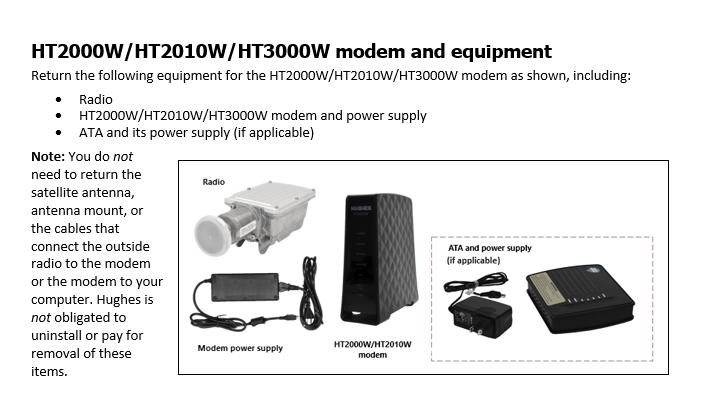
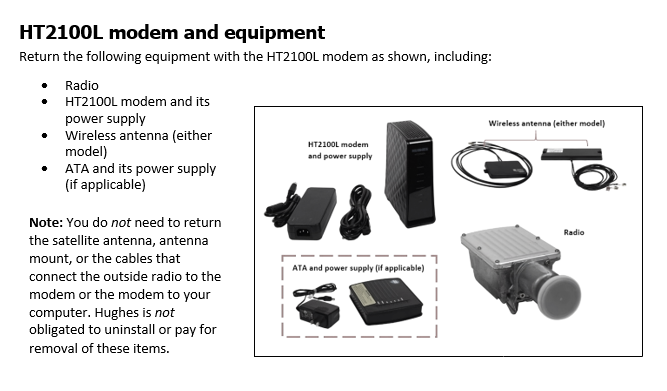

1. If only the modem is returned, the amount for the Unreturned Equipment Fee will be $200. If only the radio transmitter is returned, then a $100 Unreturned Equipment Fee will apply. The Unreturned Equipment Fee is part of the subscriber agreement that you can view at legal.Hughesnet.com.
2. A technician service fee may apply.
What is Video Optimizer?
The Video Optimizer helps you get the most out of your service when streaming video content.
How it works:
Hughesnet® automatically adjusts data rates for streaming video to deliver great picture quality while using less of your data. Streaming is optimized with video streams up to HD quality. For best performance, leave any video streaming applications at their default automatic resolution setting. Most video services are supported. Not all video sources are identifiable.
Can I watch movies in HD with Hughesnet?
Yes! Your service is automatically set to stream videos up to HD quality. You can choose to temporarily disable the feature for up to 4 hours using the Snooze button. It’s easy to manage your video optimizer settings using the Hughesnet Mobile App or on myhughesnet.com.
Where can I manage my video settings?
Manage Video Optimizer on the Hughesnet Mobile App
Manage Video Optimizer on myhughesnet.com
Streaming providers may use progressive or adaptive video streaming. The format in which they deliver video can affect your streaming experience. Click here learn more about Adaptive and Progressive video Streaming.
What is the Bonus Zone?
The Bonus Zone is a period of time when you have access to additional high-speed data! For residential customers it is between the hours of 2am-8am local time. The amount of your Bonus Zone data is determined by the service plan to which you subscribe. Use this additional plan data to download large files like movies, system updates for your computer, tablet, or smartphone—and more.
What is the difference between Service Plan Data and Bonus Zone (Formerly Bonus Bytes)?
You will consume your Service Plan Data whenever you use the internet during daytime hours. Your usage can be viewed on myhughesnet.com and the Hughesnet Mobile App.
Bonus Zone represents additional data that does not count toward your monthly Service Plan Data during the hours of 2am and 8am local time only.
How do I use Bonus Zone?
It’s easy- you don’t have to do anything to take advantage of this! During the Bonus Zone hours (2am-8am), your service will automatically use the additional plan data instead of using Data from your service plan.
How much Bonus Zone data do I receive with my plan? (requires sign in)
You can best leverage the Bonus Zone by scheduling your computer updates and movie/music downloads during this time.
Introduction to the myHughesnet (Mobile) app
The myHughesnet (Mobile) app is free and available to iOS and Android users and can be installed from the App Store or Google Play.
| iOS | Android |
|---|---|
| Requires iOS 9.0 or later. Compatible with iPhone, iPad, and iPod touch. | Requires Android version 4.4 and up. |
| Download Now | Download Now |
myHughesnet (Mobile) app Features Include:
Navigation
Icons at the bottom of every screen give you instant access to key information about your account.
Homepage
Refreshed layout for a better viewing experience. Quick reference boxes give you key information about your account on the main screen.
Notifications
Enroll in Hughesnet® notifications for billing reminders, service messages and usage updates. Choose email or text message or both.
Support Articles/FAQs
An expanded array of support articles and frequently asked questions have been added to provide you with the information you need – faster.
Wi-Fi Signal Gauge
The app offers a Wi-Fi signal strength gauge that works exclusively with your Hughesnet modem to detect the strength of your Wi-Fi signal in and around your home.
Alerts
The number of unread alerts appear next to the bell icon in the upper right corner of each screen. Alerts are unique to your account.
Data Usage
Easily access your remaining data and your billing cycle details.
Registered customers on myhughesnet.com can conveniently use the same username and password on the mobile app.