The Video Optimizer helps you get the most out of your service when streaming video content. It automatically adjusts streaming video up to HD quality.
Where can I manage my Video Optimizer settings?
You can manage the settings via the myHughesnet (Mobile) app or on myhughesnet.com.
Here’s how to manage Video Optimizer on the myHughesnet (Mobile) app:
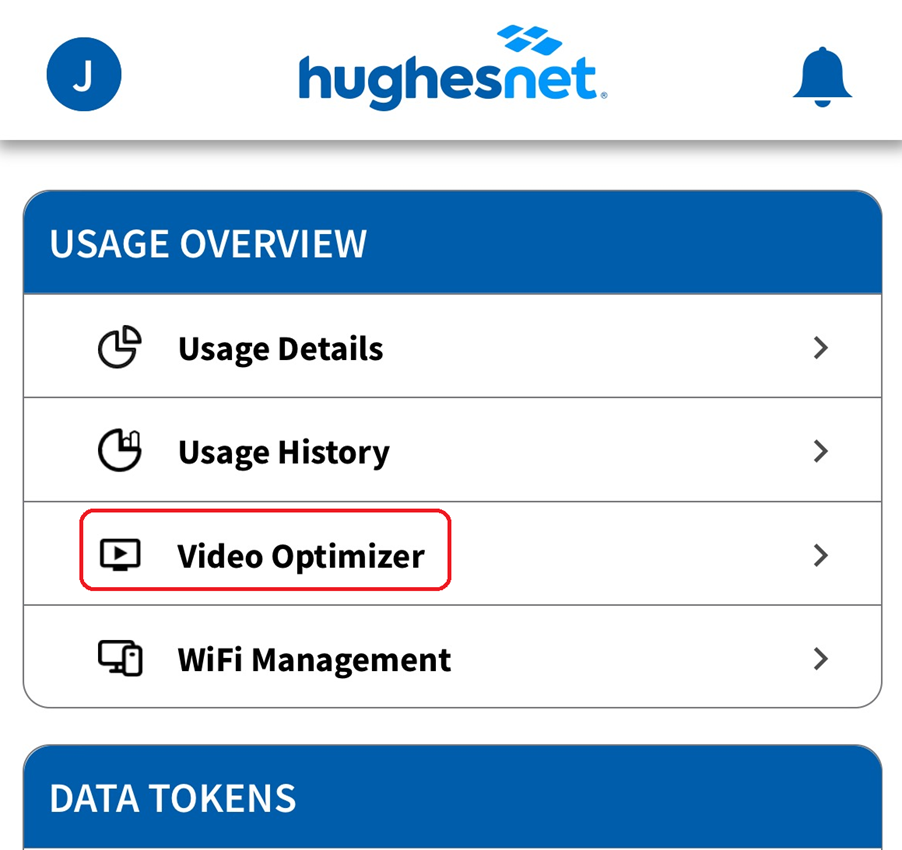
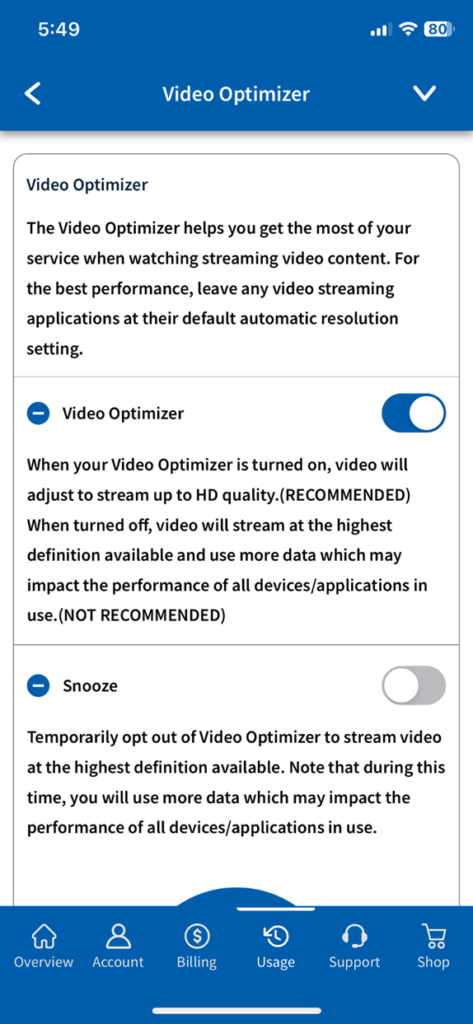
Sign in or register on the myHughesnet (Mobile) app. Go to âUsageâ > âVideo Optimizerâ from the bottom menu.
On the âVideo Optimizerâ screen you can enable the video optimizer (highly recommended) or temporarily snooze it.
Click here to see how you can manage Video Optimizer on myhughesnet.com
If you have already created a HughesnetÂŽ email account, you can easily access your email from the myhughesnet.com header or by clickingâŻhere.âŻSign in required.
You can also access your email from your mobile device. ClickâŻhereâŻto learn more.âŻ
Please note that you will no longer be able to create new Hughesnet email accounts.
For information on transferring emails from your Hughesnet email to other email services like Gmail, click here.
The Video Optimizer helps you get the most out of your service when watching streaming video content. It automatically adjusts streaming video up to HD quality.
Where can I manage my video settings?
You can manage the settings via the HughesnetÂŽ Mobile App and on myhughesnet.com.
myhughesnet.com:
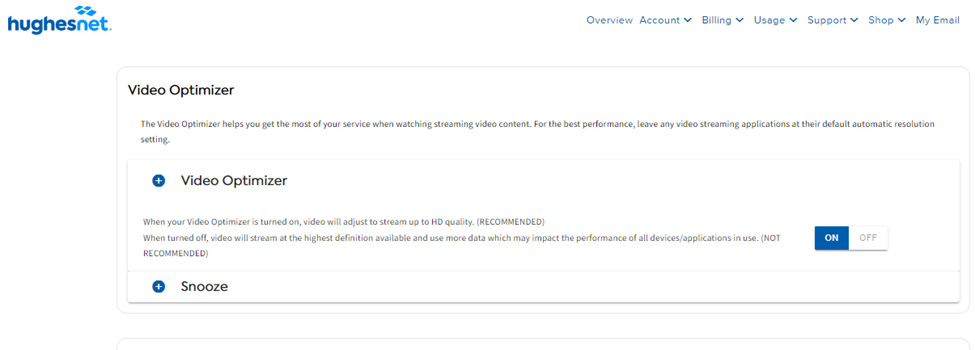
Sign In or register on myhughesnet.com then click on âUsageâ > âVideo Optimizerâ.
On the âVideo Optimizerâ screen you can enable the video optimizer (highly recommended) or temporarily snooze it.
As a HughesnetÂŽ for Business customer who has purchased a Static IP, you can easily access your static IP address from your System Control Center.
Step 1: Access through the web
⢠Open a web browser.
  â˘Â In the browser address bar, type 192.168.0.1 or systemcontrolcenter.com and press Enter.
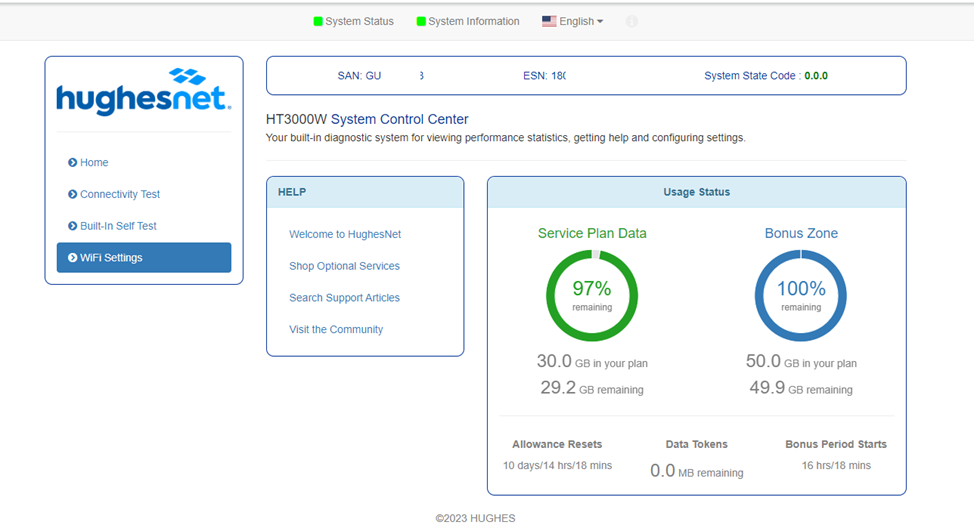
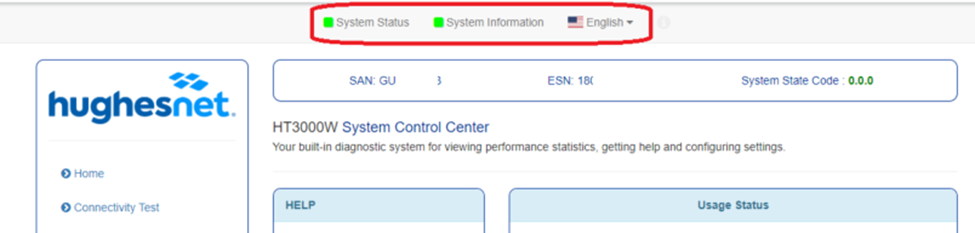
The System Control Center home page contains numerous links to satellite modem features and important information regarding operation of your satellite modem. Below is an image of the System Control Center home page.
Step 2: Find your Static IP
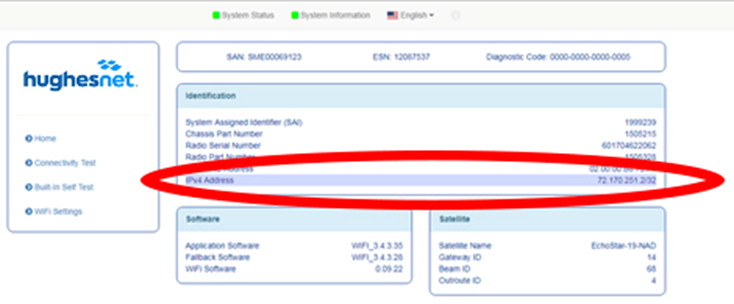
From the System Control Center homepage, navigate to the top and click on System Informationâ.
Your static IP address will be listed in the Information box shown below.
Step 3 (recommended): Set Local Static IP
Click on âWi-Fi Settingsâ in the left navigation panel.
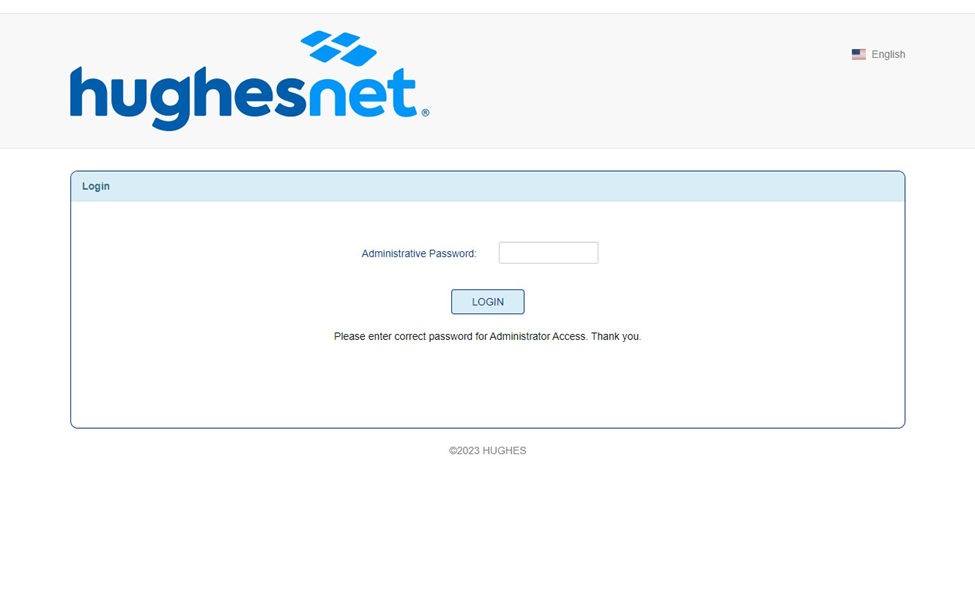
On the login screen, enter the âAdministrative Passwordâ and click âLOGINâ to unlock advanced settings on the left navigation panel.
Note: The default Administrative Password is ‘admin‘.
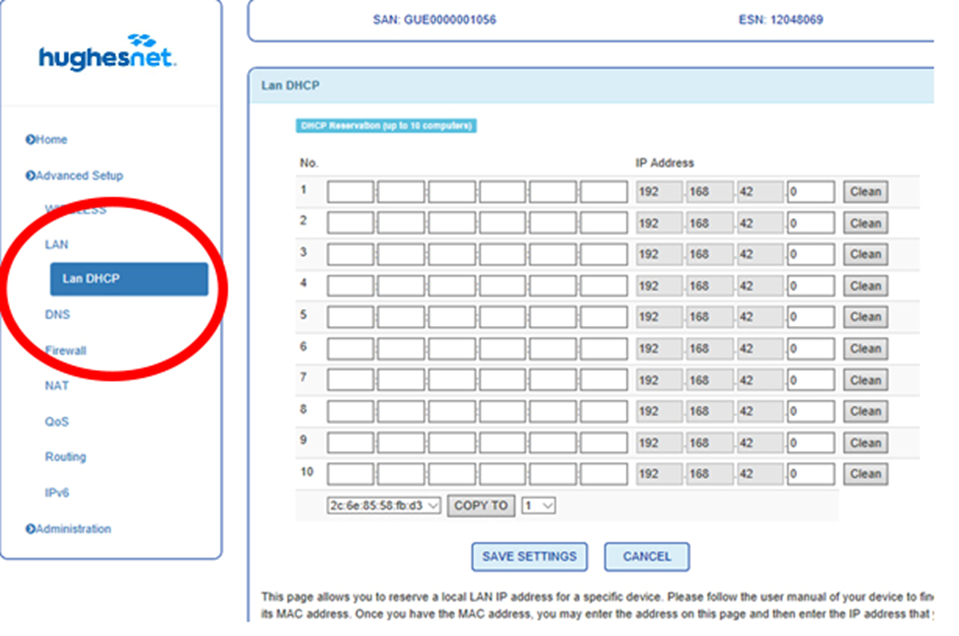
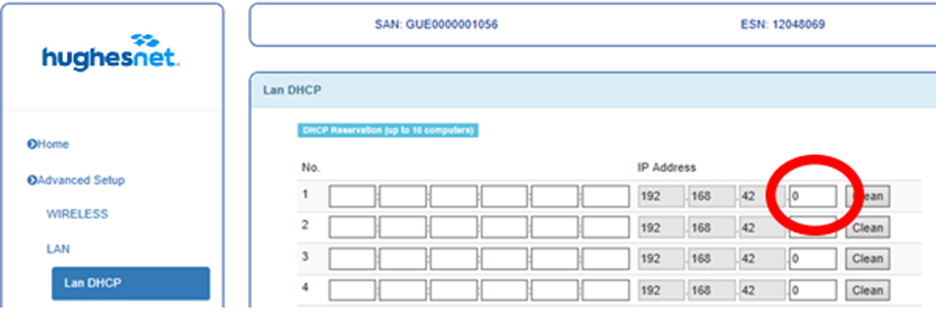
Navigate to the left side panel and click on âLAN DHCPâ.
Next, click the âCOPY TOâ button found at the bottom of the screen. This will copy the MAC address of the intended device into the table.
Type a number between 2 to 254 in the last box of the IP address. Click âSave Settingsâ.
Example: The local Static IP can be set anywhere between 192.168.42.2Â through 192.168.42.254
Reboot your intended device.
Step 4 (required): How to set up Port Mapping
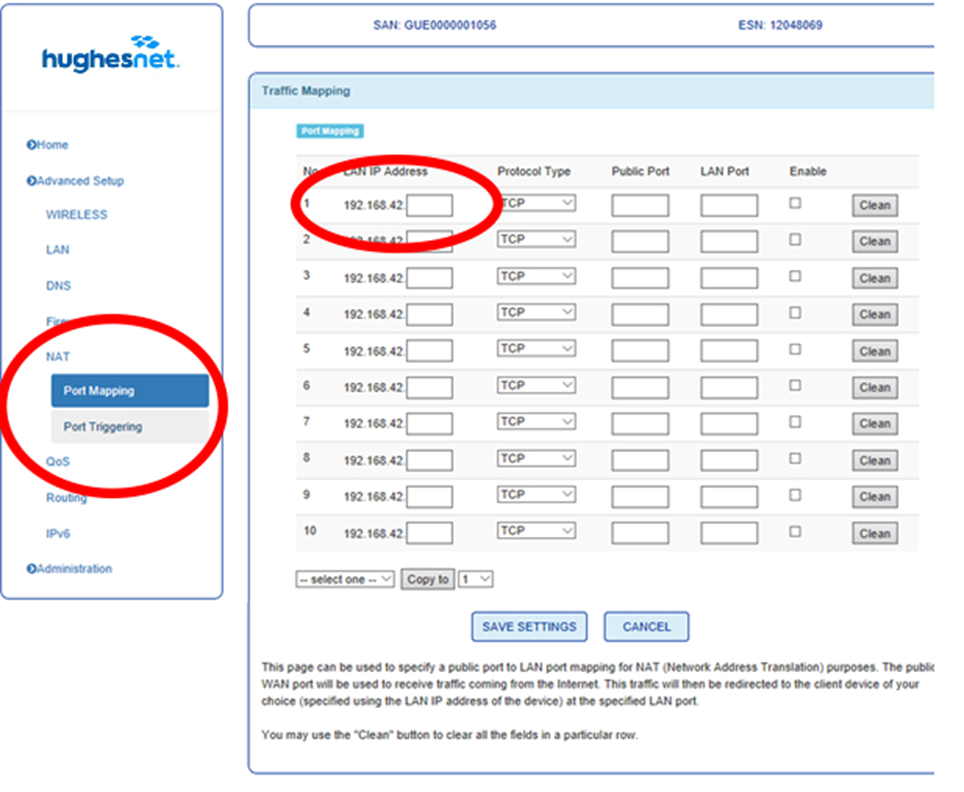
Navigate to the left side panel. Click on âNATâ > âPort Mappingâ.
Assign any number between 2 to 254 (If you followed Step 3, use the same numbers) to the âLAN IP Addressâ column.
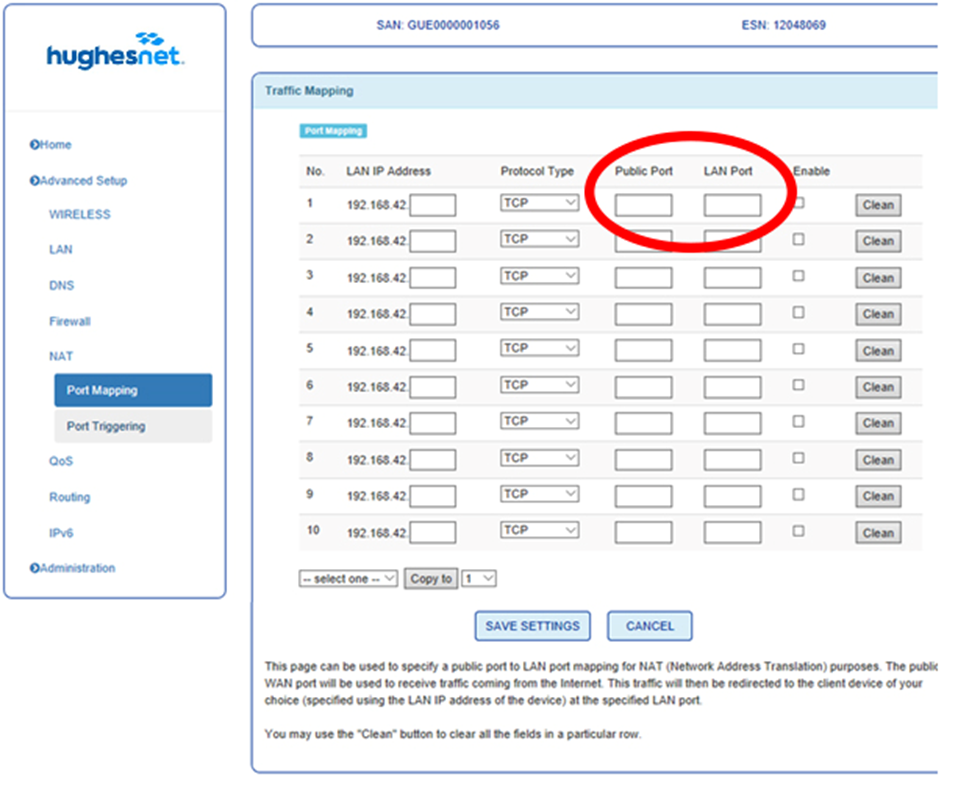
Next, enter your public and LAN port numbers.Â
Click on âEnableâ > âSave Settingsâ.
Note: Static IP is not available for Hughesnet Internet Continuity customers at this time.
The HT2000W offers built-in dual-band Wi-Fi connectivity. Customers using other HughesnetÂŽ modems can also connect wireless devices using a router.
Does HT2000W come with built-in Wi-Fi?
The Hughesnet Wi-Fi Modem (HT2000W) offers built-in Wi-Fi so you can connect your wireless devices at home. The Hughesnet Wi-Fi Modem features the latest Wi-Fi standards and technology (dual-band 802.11ac) to deliver fast, secure wireless connectivity, 2.4 GHz and 5 GHz for incredible speeds and excellent coverage. It also has separate guest Wi-Fi for visitors to keep your home network more secure. The Wi-Fi modem is installed and supported by Hughesnet.
The Hughesnet Wi-Fi Modem provides a dual-band network (2.4GHz and 5GHz). Which one should I use?
The Hughesnet Wi-Fi Modem (HT2000W) provides two networks, a 2.4GHz and 5GHz. You can tell them apart based upon the name â the 2.4GHz network name starts with âhug2gâ and the 5GHz network name starts with âhug5gâ. Deciding which network to use should be based on your unique home set-up. Learn more here.
How can I get wireless access at home if I donât have the Hughesnet Wi-Fi modem?
You can connect a wireless router to your Hughesnet modem and enjoy high-speed internet access anywhere in your home. If you donât have a wireless router, there are many options available that you can purchase locally.
What wireless router would you recommend?
Since every Hughesnet member has their own distinct home setup, we cannot provide a single recommendation that would apply to all our members. For customers living in a small home, a low-end device might be all they need. For customers living in a 3,000 square-foot, multi-story house, they will likely need the signal strength provided by higher-end devices.
Being aware of online threats and installing security software on all devices can protect against identity and other online threats – like ransomware, phishing,and fake antivirus.
Norton Security Online delivers comprehensive protection against online threats to help keep your identity, your devices and financial data safe from cybercrime. With one simple solution, you can protect you and your entire familyâs PCs, Macs, smartphones, and tablets.
How many devices can I protect with my subscription?
Norton Security protects PCs, MacsŽ, Androids⢠and iOSŽ devices with a single subscription. However, the number of devices connected will depend on the subscription purchased.
How do I order?
You can order Norton products by signing into your account at myhughesnet.com or by calling Customer Care at 866-347-3292.
What are the system requirements?
Windows Operating Systems
Microsoft Windows XP (all 32-bit versions) with Service Pack 3 (SP 3) or later
Microsoft Windows Vista (all versions) with Service Pack 1 (SP 1) or later
Microsoft Windows 7 (all versions) with Service Pack 1 (SP 1) or later
Microsoft Windows 8/8.1 (all versions). Some protection features are not available in Windows 8 Start screen browsers.
Microsoft Windows 10 (all versions). Edge browser not supported.
Mac Operating Systems
Current and previous two versions of Mac OS X. Password Management feature not supported. Norton Family and Norton Family Premier features not supported.
Android Operating Systems
Android 4.0.3 or later. Must have Google Play app installed. Android 4 or later required for Norton Family Premier Android app.
iOS Operating Systems
iOS 8 or later
What is the cost of Norton Security Online?
Norton Security is a subscription-based service that will be billed monthly on your HughesnetÂŽ invoice. Log in to your myhughesnet.com account or call Customer Care at 866-347-3292 to check the cost and to add Norton Security Online to your account.
I purchased a subscription to Norton Security Online. Where do I download or retrieve my PIN?
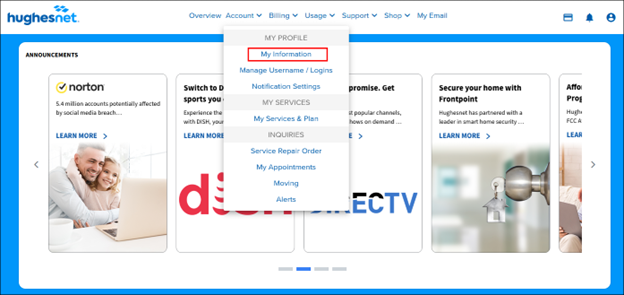
Go to myhughesnet.com and navigate to âAccountâ > âMy Services & Planâ to view a full list of your Hughesnet services. Click on ‘+’ next to your Norton subscription. The expanded screen will provide the link to download, as well as your PIN information.